Authentication
Every route is delegated: Work IQ acts as the signed-in user, with that user’s Microsoft 365 permissions. Application-only access isn’t supported.
Admin, once per tenant, for every route
Section titled “Admin, once per tenant, for every route”
- Enable Work IQ. A Global Administrator creates the Work IQ service principal, for example with
az ad sp create --id fdcc1f02-fc51-4226-8753-f668596af7f7. In most cases it’s created automatically on first use. - Billing. A usage-based billing plan in Copilot Studio, with an Azure subscription and resource group, and each user assigned to it. Until then, calls return 403; after assigning, allow 15 to 30 minutes.
- Consent.
WorkIQAgent.Askis marked as requiring admin consent, so each app that requests it needs admin consent. Without it, the first sign-in asks for admin approval.
MCP, local
Section titled “MCP, local”- The app starts the Work IQ CLI (
workiq mcp) and speaks MCP over stdin and stdout. It never holds a Work IQ token. - The Work IQ CLI signs the user in with its own app registration and keeps its own token cache. On the first run:
workiq accept-eula. - Microsoft Entra ID issues the CLI a delegated token for Work IQ.
- The Work IQ service gets that token from the CLI, and Microsoft 365 data is read with the user’s permissions.
MCP, remote
Section titled “MCP, remote”- The app signs in through the browser with MSAL: with the published Work IQ MCP client and the callback port 12798, or with your own client ID.
- Microsoft Entra ID issues a token for
WorkIQAgent.Ask, the one scope the MCP endpoint’s OAuth metadata advertises. - The Work IQ MCP endpoint,
https://workiq.svc.cloud.microsoft/mcp, gets the token with every request. - Microsoft 365 data is read with the user’s permissions, and changed only if the tenant’s Work IQ MCP policy allows it.
- Your app registration is a public client (Mobile and desktop), with the redirect
http://localhost, public client flows allowed, and the delegated permissionWorkIQAgent.Ask. - The app signs in through the browser with MSAL, with your tenant ID and client ID and without a secret.
- Microsoft Entra ID issues a token for
api://workiq.svc.cloud.microsoft/WorkIQAgent.Ask. - The Work IQ A2A endpoint,
https://workiq.svc.cloud.microsoft/a2a/, gets JSON-RPC with the token.
REST API
Section titled “REST API”- Your app registration is the same public client as for A2A, with the delegated permission
WorkIQAgent.Ask. - The app signs in through the browser with MSAL, with your tenant ID and client ID and without a secret.
- Microsoft Entra ID issues a token for
api://workiq.svc.cloud.microsoft/WorkIQAgent.Ask. - The Work IQ REST endpoint gets the token with
https://workiq.svc.cloud.microsoft/rest/conversations, then…/{id}/chat.
The harness model
Section titled “The harness model”The model of the MCP routes signs in separately: with Microsoft Entra ID through DefaultAzureCredential for Azure OpenAI and Foundry endpoints, for example after az login, where your account needs a data-plane role on the resource; or with an API key for any endpoint. It gets no Work IQ access.
Your own desktop tool: recommended setup
Section titled “Your own desktop tool: recommended setup”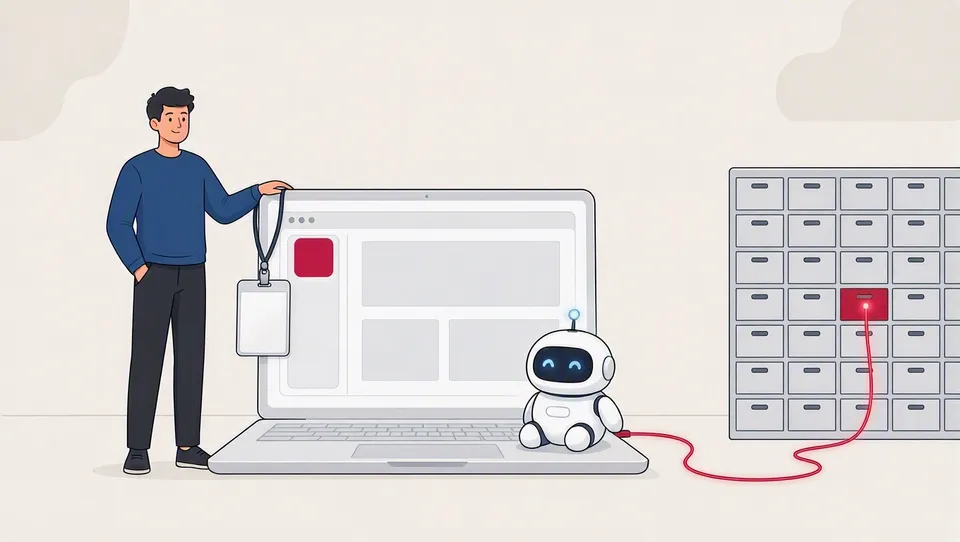
- Your app registration is a public client for your tool, with the delegated permission
WorkIQAgent.Ask. On Windows, add the broker redirect to sign in through WAM. - Your desktop tool signs in interactively with MSAL, in the system browser or WAM, with no secret in the app.
- Microsoft Entra ID issues a token for
WorkIQAgent.Ask. - Work IQ: remote MCP when your harness picks the tools; A2A or REST when Work IQ’s agent should answer.
Remote MCP with your own registration
Section titled “Remote MCP with your own registration”- Register a public client: the Mobile and desktop platform, the redirect
http://localhost, public client flows allowed. Add the delegated Work IQ permissionWorkIQAgent.Askand grant admin consent. Work IQ is listed under APIs my organization uses once it’s enabled. - Sign in with MSAL: the authority
https://login.microsoftonline.com/{tenant-id}and the scopeapi://workiq.svc.cloud.microsoft/WorkIQAgent.Ask. Keep the token in MSAL’s cache and renew it silently. - Send it as
Authorization: Bearer <token>with every Streamable HTTP request tohttps://workiq.svc.cloud.microsoft/mcp. The endpoint’s OAuth metadata advertises exactly this scope and theorganizationsauthority. - For users in other tenants, register the app as multitenant: each tenant’s admin consents, and users sign in through their home tenant.
In the app, enter your tenant ID and client ID when you connect remote MCP; it then signs in with your registration on any localhost port. The code is in src/auth.js for MSAL and src/workiq/mcp.js for the token on each request.
- Running the Work IQ CLI also works, as the app shows, but it signs in with its own registration, each user accepts its EULA, and your tool runs an extra process. Its license doesn’t allow redistributing it, so the app’s downloads leave it out and each user installs it with npm.
- If your harness runs on a server, use a confidential client with a secret or certificate, and the On-Behalf-Of flow.
Why the app runs without its own app registration
Section titled “Why the app runs without its own app registration”- Local MCP: the Work IQ CLI brings its own registration. The app only starts it and never sees the token.
- Remote MCP: the app uses the public client ID from the Work IQ MCP plugin:
ba081686-5d24-4bc6-a0d6-d034ecffed87, withoauthPublicClient: trueandredirectPort: 12798. A public client has no secret, and the sign-in returns to port 12798, where the app listens. - The model:
DefaultAzureCredentialreuses an existing Azure sign-in, such asaz login, or you enter an API key. - Both MCP routes work without a registration of your own only where the tenant allows them: Work IQ enabled, the user in a billing policy, and both clients allowed to sign in. The CLI needs admin consent as a prerequisite. For the published MCP client in a new tenant: tbd.
- A2A and REST do need a registration. The app doesn’t reuse the published MCP client for them; the A2A quickstart has you register your own app.
The illustrations are AI-generated (MAI-Image-2.6). The screenshots and the demo show example data.