Make a visual memory cue
Generate a picture that helps you remember a word. You write the route that asks MAI-Image-2.6-Flash for it.
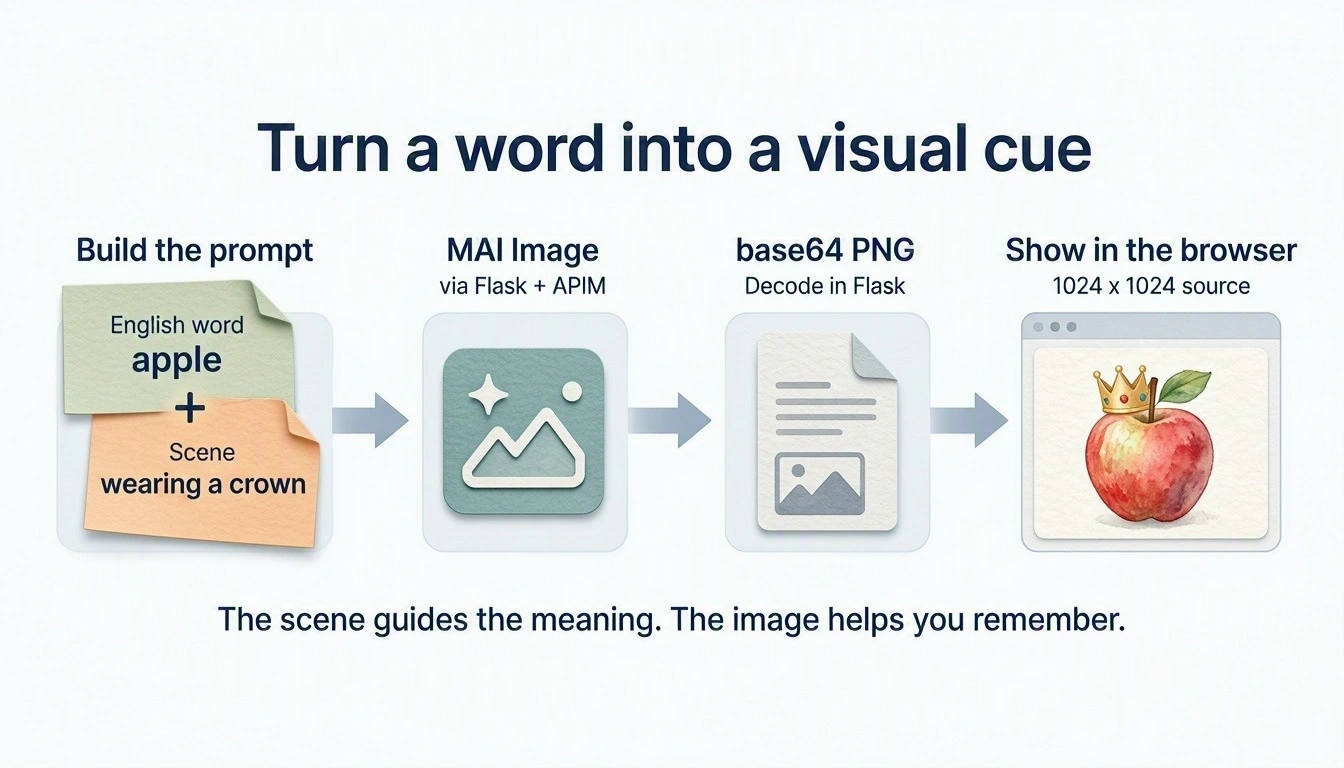
MAI-generated diagram. Full size.
How it works
Your /image route sends an English prompt and 1024 × 1024 dimensions to the
gateway's image endpoint with deployment mai-image-flash. The JSON answer
carries the picture as a base64 PNG in data[0].b64_json; Flask decodes and
checks it and returns image/png. A picture takes about 10–15 seconds.
API details.
Build
What you'll build.
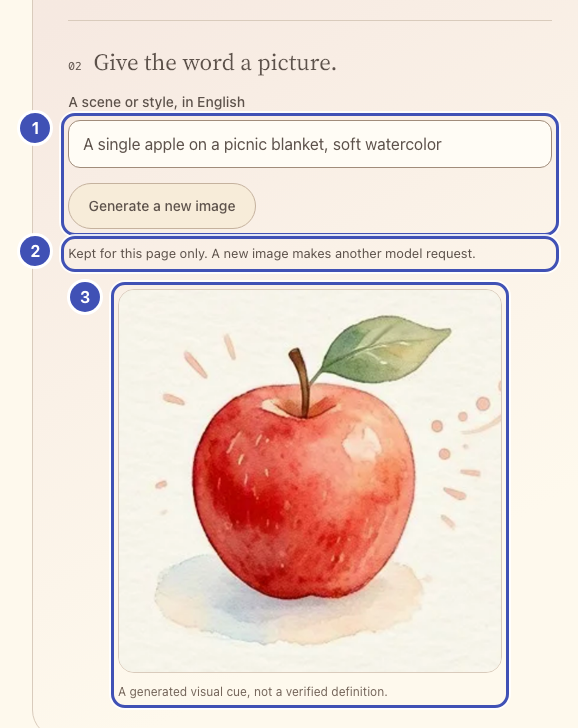
- ❶ Scene and button: the button posts the word and your scene to
/image. - ❷ Status line: says the picture is kept for this page.
- ❸ Picture: the PNG that your
/imageroute decoded.
The same numbers mark the highlighted lines in the code below. Keep or delete
those ❶ comments; they only link code to the picture.
1. Add the image controls
Why an English scene?
The prompt is built in English, and the scene picks the meaning you want, such as a river bank rather than a savings bank.
In starter/templates/index.html, replace
<!-- Lesson 5: add memory controls here. --> with:
<section class="practice-step" aria-labelledby="image-title">
  <div class="step-title"><span class="step-number">02</span><h3 id="image-title">Give the word a picture.</h3></div>
  <label for="image-detail">A scene or style, in English</label>
  <!-- ❶ -->
  <input id="image-detail" maxlength="360" placeholder="A tiny apple wearing a crown">
  <button id="generate-image" class="button secondary" type="button">Make a memory image</button>
  <!-- ❷ -->
  <p id="image-status" class="status" role="status" aria-live="polite"></p>
  <!-- ❸ -->
  <figure id="memory-figure" class="memory-figure" hidden>
    <div id="image-mount"></div>
    <figcaption>A generated visual cue, not a verified definition.</figcaption>
  </figure>
</section>
2. Your turn: write /image
Why decode the image in Flask?
The gateway returns JSON with a base64 PNG. Decoding and checking it on the server means the browser only ever receives a real 1024 × 1024 image.
In starter/app.py, replace # Lesson 5: add the /image route here. with a
route that follows this contract.
| Flask receives | POST /image with JSON {"word": "apple", "detail": "an optional scene"} |
| Gateway request | POST {base}/mai/v1/images/generations |
| Headers | api-key from gateway(); json= sets the JSON content type |
| Body | {"model": os.getenv("MAI_IMAGE_DEPLOYMENT", "mai-image-flash"), "prompt": ..., "width": 1024, "height": 1024} |
| Prompt | Illustrate the English vocabulary word "{word}" as a memorable, clear visual cue. No letters or captions. {detail} |
| Flask returns | The decoded PNG as image/png, after check_png(png) |
@app.post("/image")
def image():
    data = json_body()
    word = text_field(data, "word")
    detail = optional_text(data, "detail", limit=360)
    base, headers = gateway()
    # TODO 1: httpx.post the contract's JSON body to f"{base}/mai/v1/images/generations"
    #         with json=..., headers=headers, and timeout=TIMEOUT.
    # TODO 2: payload = upstream_json(response); read payload["data"][0]["b64_json"].
    # TODO 3: base64.b64decode(encoded, validate=True), check_png(png), and
    #         return Response(png, mimetype="image/png").
    abort(501, "Lesson 5: finish the /image route.")
Hint: what the gateway returns
The response looks like this (the base64 string is about 2.4 MB):
{
  "created": 1790283468,
  "data": [{"b64_json": "iVBORw0KGgoA..."}],
  "model": "mai-image-flash",
  "size": "1024x1024",
  "usage": {"num_output_tokens": 1024, "num_input_text_tokens": 22, "num_input_image_tokens": 0}
}
base64.b64decode(..., validate=True) raises binascii.Error for invalid
input; turn that into abort(502, ...). check_png() stops unless the bytes
are a 1024 × 1024 PNG.
Reference solution
# ❶
@app.post("/image")
def image():
    data = json_body()
    word = text_field(data, "word")
    detail = optional_text(data, "detail", limit=360)
    base, headers = gateway()
    response = httpx.post(
        f"{base}/mai/v1/images/generations", headers=headers,
        json={
            "model": os.getenv("MAI_IMAGE_DEPLOYMENT", "mai-image-flash"),
            "prompt": (
                f'Illustrate the English vocabulary word "{word}" as a memorable, '
                f"clear visual cue. No letters or captions. {detail}"
            ),
            "width": 1024, "height": 1024,
        }, timeout=TIMEOUT,
    )
    payload = upstream_json(response)
    entries = payload.get("data")
    if not isinstance(entries, list) or not entries or not isinstance(entries[0], dict):
        abort(502, "The image model returned no image.")
    encoded = entries[0].get("b64_json")
    if not isinstance(encoded, str) or len(encoded) > 24 * 1024 * 1024:
        abort(502, "The image model returned an invalid image payload.")
    try:
        png = base64.b64decode(encoded, validate=True)
    except (binascii.Error, ValueError):
        abort(502, "The image model returned invalid base64.")
    check_png(png)
    # ❸
    return Response(png, mimetype="image/png")
3. Show and keep the pictures
Why keep pictures per word?
Each picture costs a model request of 10–15 seconds. Keeping it for the page makes switching words instant.
In starter/static/app.js, replace // Lesson 5: add memory images here. with
the code below. It keeps one picture per word for this page, so switching back
shows it again without another request.
const imageCache = new Map();

function renderMemory() {
  const cached = imageCache.get(selectedId);
  // ❸
  $("#image-mount").replaceChildren(...(cached ? [cached.picture] : []));
  $("#memory-figure").hidden = !cached;
  $("#image-detail").value = cached?.detail ?? "";
  $("#generate-image").textContent = cached ? "Generate a new image" : "Make a memory image";
  // ❷
  $("#image-status").textContent = cached ? "Kept for this page only. A new image makes another model request." : "";
}

// ❶
$("#generate-image").addEventListener("click", () => {
  const word = selectedWord();
  const detail = $("#image-detail").value.trim();
  runAction("MAI Image is making a visual cue...", async () => {
    const response = await callApp("/image", jsonOptions({word: word.english, detail}));
    if (!response.headers.get("Content-Type")?.includes("image/png")) {
      throw new Error("Expected a PNG. Reopen the app if Codespaces sign-in expired.");
    }
    const url = URL.createObjectURL(await response.blob());
    const picture = new Image();
    picture.id = "memory-image";
    picture.alt = `Generated visual cue for ${word.english}`;
    picture.src = url;
    try { await picture.decode(); }
    catch {
      URL.revokeObjectURL(url);
      throw new Error("The returned image could not be displayed.");
    }
    const previous = imageCache.get(word.id);
    if (previous) URL.revokeObjectURL(previous.url);
    imageCache.set(word.id, {picture, url, detail});
    renderMemory();
  });
});
onWordChange(renderMemory);
window.addEventListener("pagehide", () => {
  for (const cached of imageCache.values()) URL.revokeObjectURL(cached.url);
});
Run: save, reload, and press Make a memory image. Network shows
POST /image answered by image/png. Switch words and back: the picture
returns. Reloading clears pictures, not the word list.
If you click quickly or many people share one key, the gateway answers 429;
the app then says how many seconds to wait.
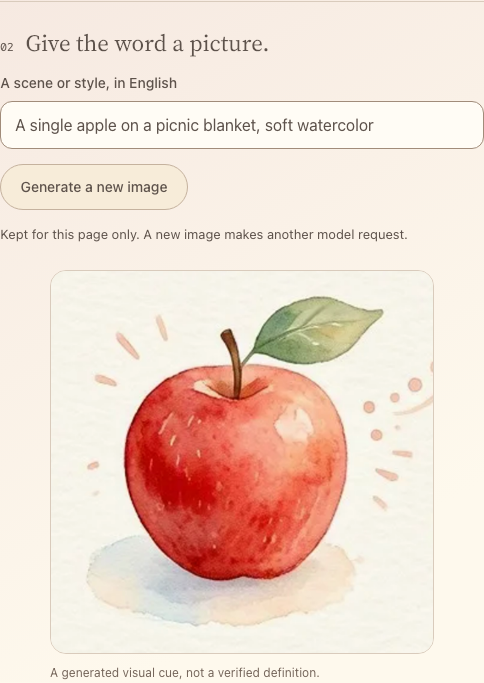
Captured with an example image response.
Catch up: python checkpoints/restore.py 05 copies this lesson's finished
files over yours, after backing yours up.
One word, two explicit scenes
The scene prompt distinguishes two meanings of bank:
| River bank: the natural edge of a river | Savings bank: a financial institution |
|---|---|
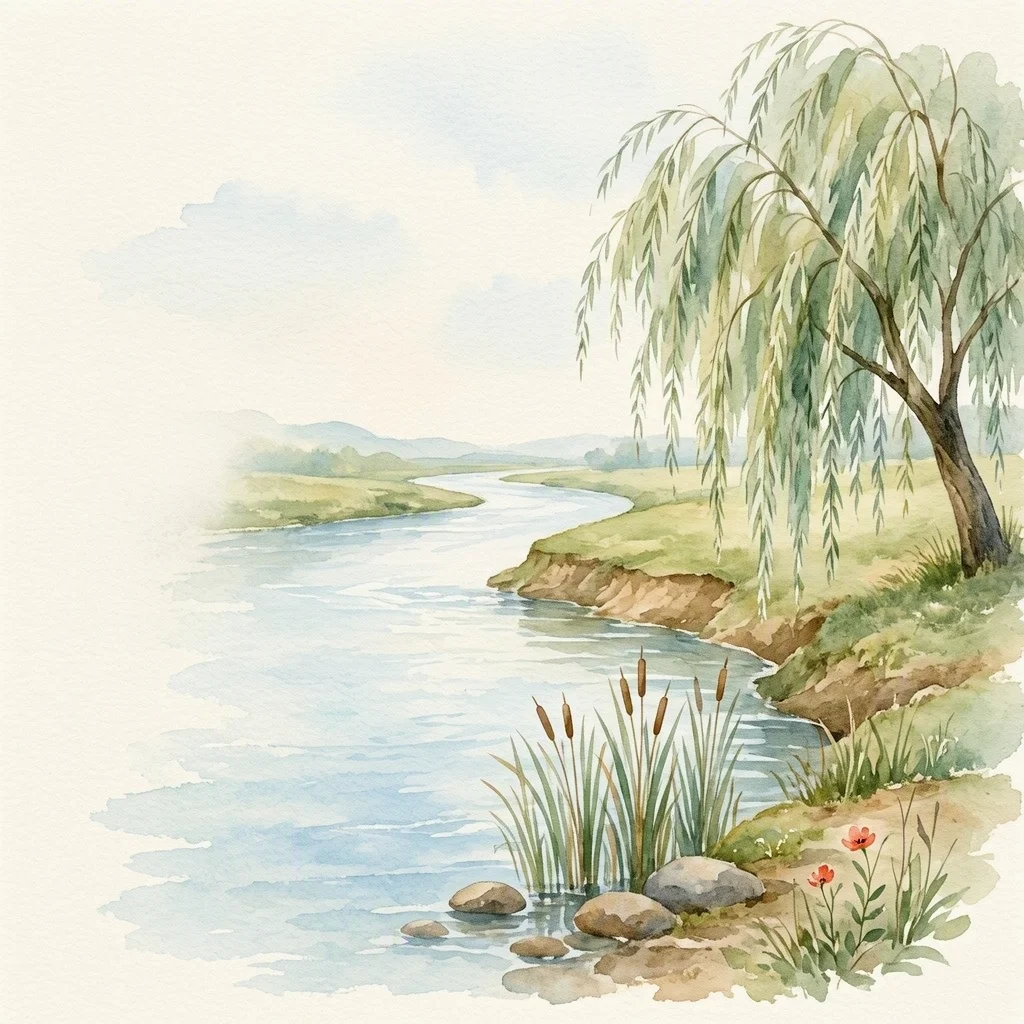 |
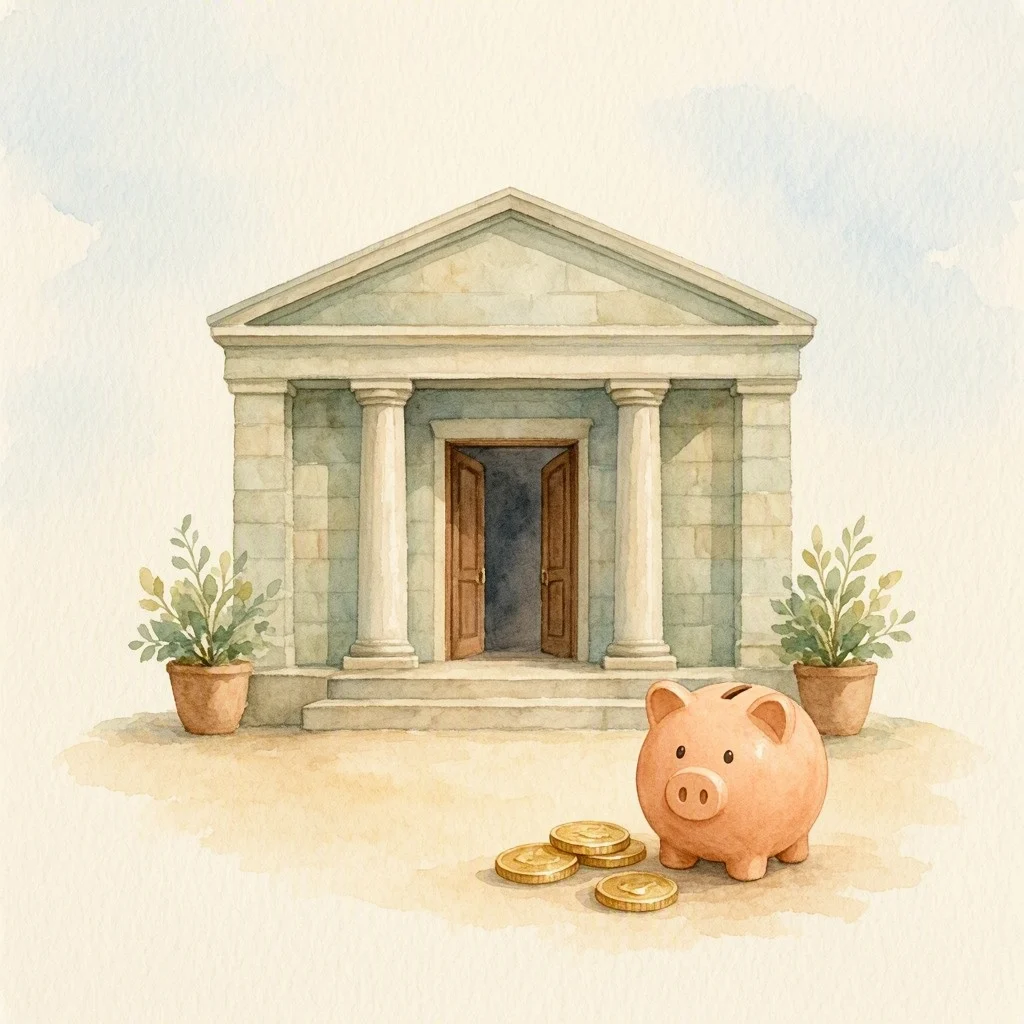 |
MAI-generated examples with different prompts. Exact prompts.
Try one
Each Generate click is a new model request.
- For
apple, compare an empty scene withA single apple on a picnic blanket, soft watercolor. - For
bank, compareA river bank with reeds, no buildingswithA bank building on a city street. Which matches your saved translation? - Flash versus the full model. In
.env, changeMAI_IMAGE_DEPLOYMENTtomai-image(add the line if it is missing), restart Flask (the reloader does not watch.env), and generate the same prompt. In our tests MAI-Image-2.6 took about 30 seconds, Flash about 13. Change it back tomai-image-flashafterwards. - See what you used. Add
app.logger.warning("usage: %s", payload.get("usage"))afterpayload = upstream_json(response). In the Flask terminal, find the line withWARNING in app: usage:and its token counts, such asnum_output_tokens: 1024. Compare them with the cost page.
Finish: use the full loop: select, listen, record or upload, check, and picture. Then try optional mnemonics or compare models and cost.